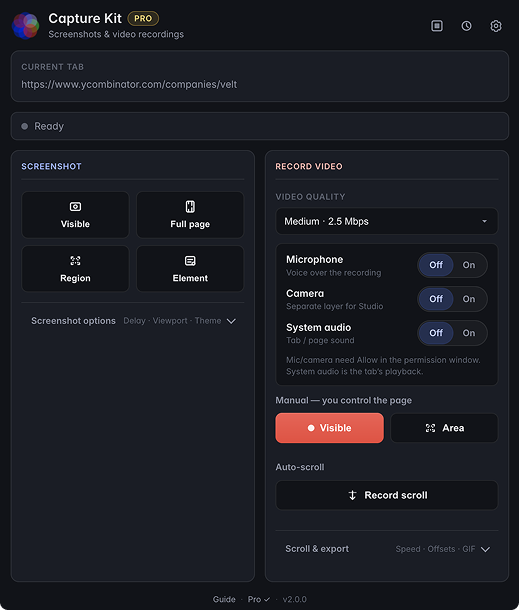
Visible area & full page
Capture what’s on screen or stitch the entire scrollable page into one image.
Chrome extension
Capture what’s on screen or stitch the entire scrollable page into one image.
Highlight, draw, add arrows, boxes, and text labels before you copy or save.
Choose Small to Huge sizes, set background colors, and use the Inter font for labels.
Record a smooth auto-scroll video of the tab with adjustable quality presets.
Pick PNG or JPG for screenshots and WebM or MP4 for recordings from the settings page.
Files use URL-based names and go straight to Downloads. Nothing is uploaded.
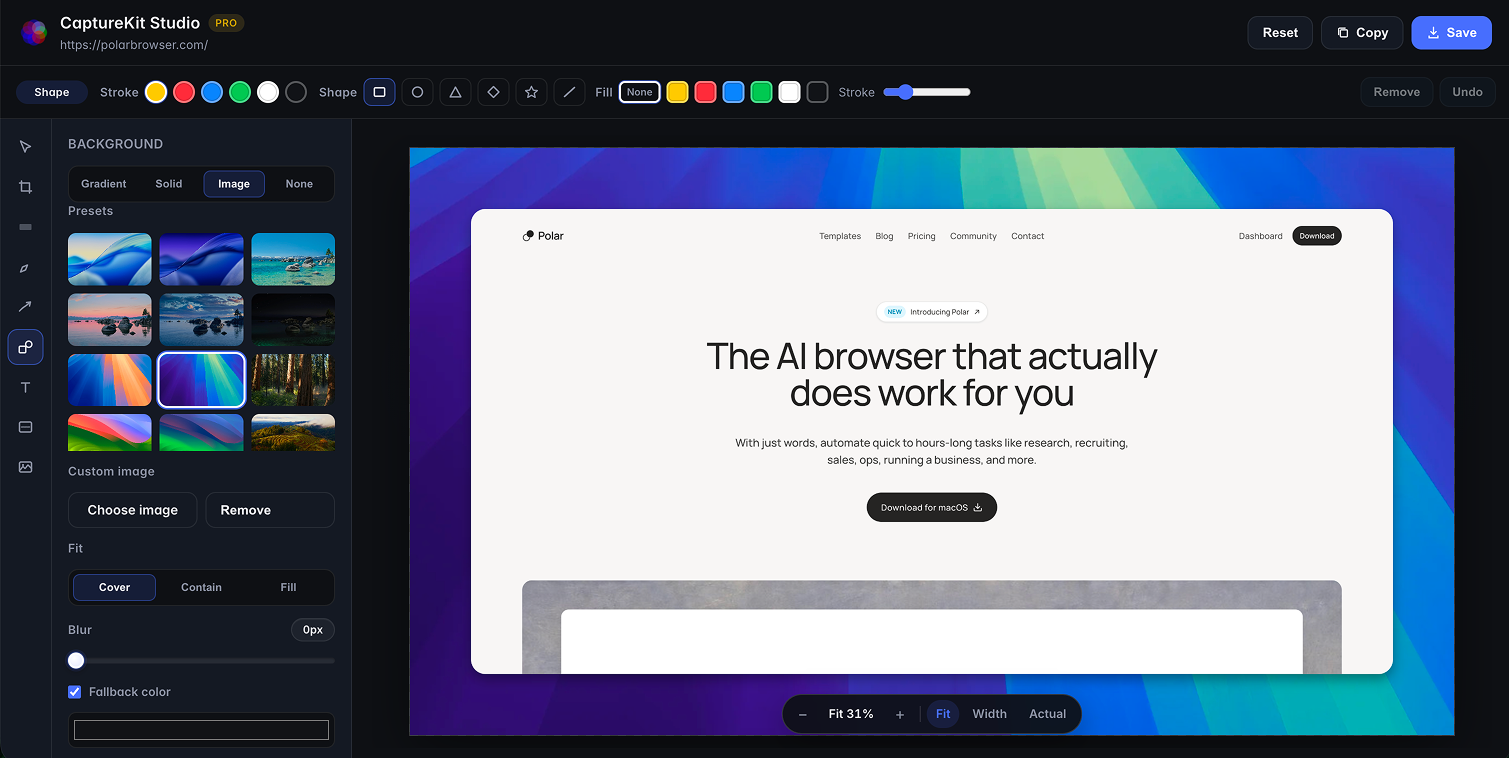
CaptureKit Studio
Open Studio free after any screenshot or recording. Compose backgrounds, frames, and layers on your device — clean, unwatermarked export is included with Pro.
Gradient presets, solid colors, transparent PNG, or wallpaper images (macOS-style presets + your own upload with blur and fit).
Auto, Square, Full HD, Open Graph, Portrait, or custom size. Padding, squircle corners, soft-to-strong shadows, and optional device mockups.
Screen and camera stay on separate tracks. Move, resize, mirror, and choose rectangle, square, or circle — without re-recording.
Add timed zoom blocks, set focus by clicking the preview, and scrub amount and position for product demos that feel intentional.
Trim screen, camera, and audio independently. Play, scrub, mute, and preview the composed canvas before you export.
Images: copy or save PNG. Video: WebM, MOV (when supported), or GIF with mixed mic audio. Everything stays local.
Free and logged-out users can open Studio, edit, and preview with a watermark. Pro unlocks clean full-resolution export. See all Studio details →
Navigate to the page you want to capture. Restricted URLs like chrome:// pages are skipped.
Take a visible-area or full-page screenshot, or start a scroll recording with your preferred quality.
Screenshots open in preview for highlight, draw, and text. Or open CaptureKit Studio free to compose backgrounds, frames, and layers.
Copy or save screenshots for free. Studio clean export (no watermark) and High/Max video quality unlock with Pro.
Pricing
Everyday screenshots, recordings, and Studio preview stay free. Upgrade to Pro for clean Studio export, high-quality video, GIF export, scheduled capture, and more. Captures always stay local.
Free
$0 forever
Core capture for everyone — no account required.
Pro Pro
$10 $5 / month
With code WELCOME50 · list $10/mo or $100/yr
Studio polish, higher quality, and automation for daily users.
Sign in with email under Settings → Pro, then subscribe via Stripe
($10 $5/mo or $100 $50/yr with
WELCOME50). Captures stay local.
Billing is handled by Stripe. Sign-in and subscription checks use your email only — never screenshots or page content. See the privacy policy.
FAQ
Free vs Pro, billing, Studio, and privacy — everything you need before you install.
Yes. Core screenshots (visible, full page, region, element), preview annotations, copy/save, and Low/Medium video recording stay free forever. No account is required to install or use Free.
Pro unlocks clean Studio export (no watermark, full resolution, video/GIF), High/Max video quality, GIF export from capture, scheduled/watchdog capture, custom filename templates, annotation templates, and a higher Library limit (up to 100). Studio open, edit, and watermarked preview stay free. See the comparison table and the full Studio feature guide.
List price $10 per month or $100 per year, billed through
Stripe.
Promo code WELCOME50 is 50% off for 1 year
($10 $5/mo or $100 $50/yr).
Cancel anytime from the customer portal in Settings → Pro.
Opening and editing Studio is free for everyone (including logged-out). You can try backgrounds, canvas sizes, frames, camera layers, zoom, and the timeline with a composited preview watermark. Clean export — download, copy, video, or GIF without the watermark — requires Pro. Raw screenshot annotate/copy/save outside Studio stays free. Full list: CaptureKit Studio.
No. Captures are processed on your device and saved locally (Downloads, Library, Studio). For Pro, the extension only contacts our auth/billing backend and Stripe to sign in with email and check subscription status — never page content or media. Details in the privacy policy.
That is Chrome’s generic permission wording, not a description of Capture Kit uploading or rewriting every site. Capture Kit does not permanently access all websites at install.
Tab capture: Capture Kit requests tab capture access only to record the tab you explicitly choose. Recording starts only after your action, and all processing remains local on your device.
Everyday screenshots and recordings use temporary access to the tab you open the extension on (or a keyboard shortcut). Optional broader site access is asked only if you enable Pro scheduled (watchdog) capture. Captures stay on your device — see the privacy policy.
Yes. Pro follows your email account, not a single device license seat. Sign in with the same email under Settings → Pro on each browser. Use Sign out on a device you no longer use.
You can cancel anytime from the Stripe customer portal (Settings → Pro → Manage subscription). There is no cancellation fee. After you cancel, you will not be charged for the next period. Access continues through the end of the period you already paid for; Pro unlocks stop when that period ends.
Questions? Email support@capturekit.pro.
Make sure you signed in with the same email used at checkout (Settings → Pro), then click Refresh status. Studio should open for free; if export still asks for Pro, common issues:
Need help? support@capturekit.pro.
Refunds are handled through Stripe. Contact support@capturekit.pro with your receipt email if you need help with a charge. For Capture Kit–specific questions, email support@capturekit.pro.
Still stuck?
We reply to real humans — no ticket queue theater.

Install Capture Kit free from the Chrome Web Store. Upgrade to Pro anytime in the extension under Settings → Pro. Read the user guide.